Journey
How to use the Movies workspace
Enter your workspaceThe journey
- AskType a question and see whether the data can answer it
- CheckFive checks, and how hard the question is
- AppendA new question is added to the Library by itself
- CollectLibrary with states
- AnswerableQuestions our movie data can answer now
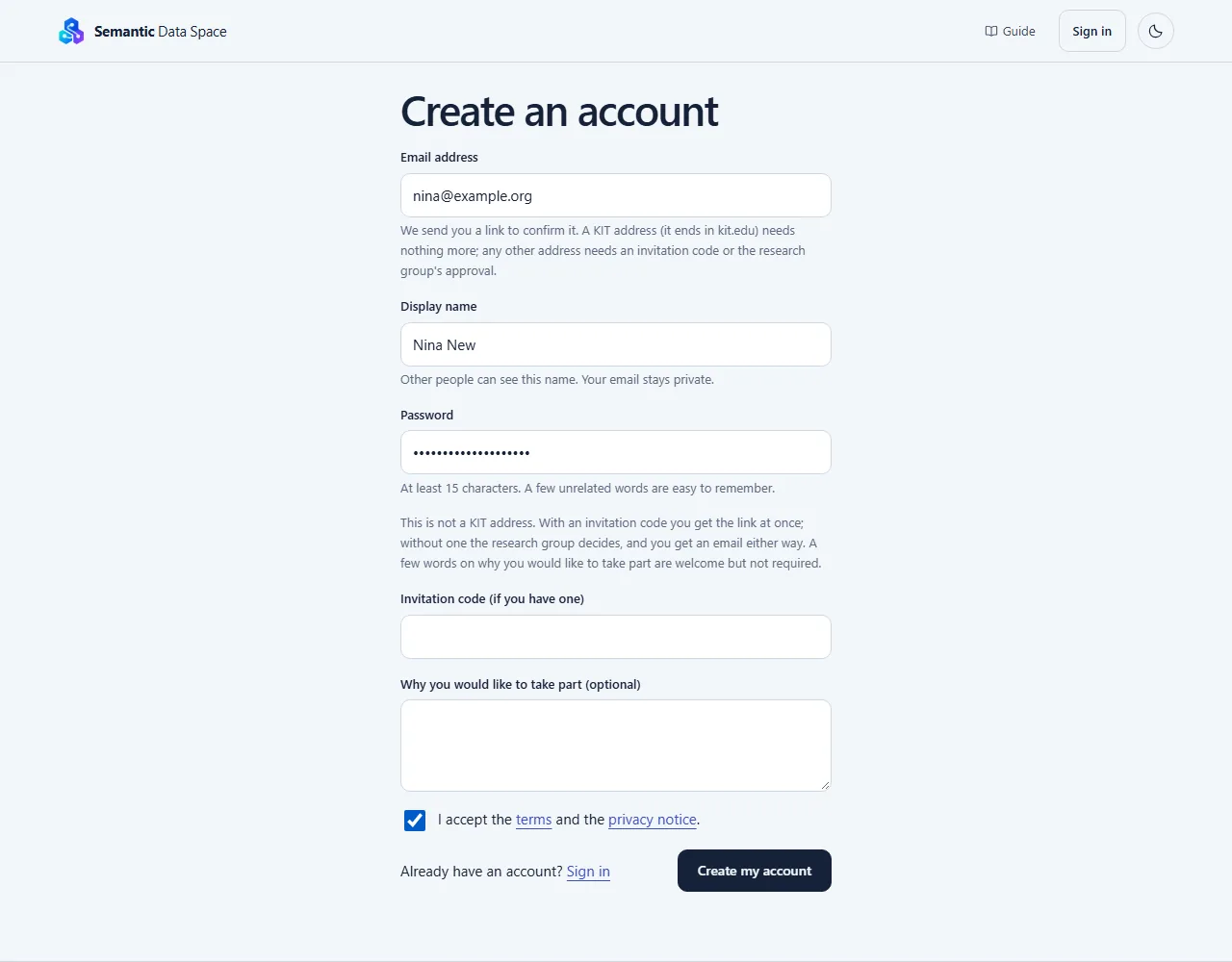
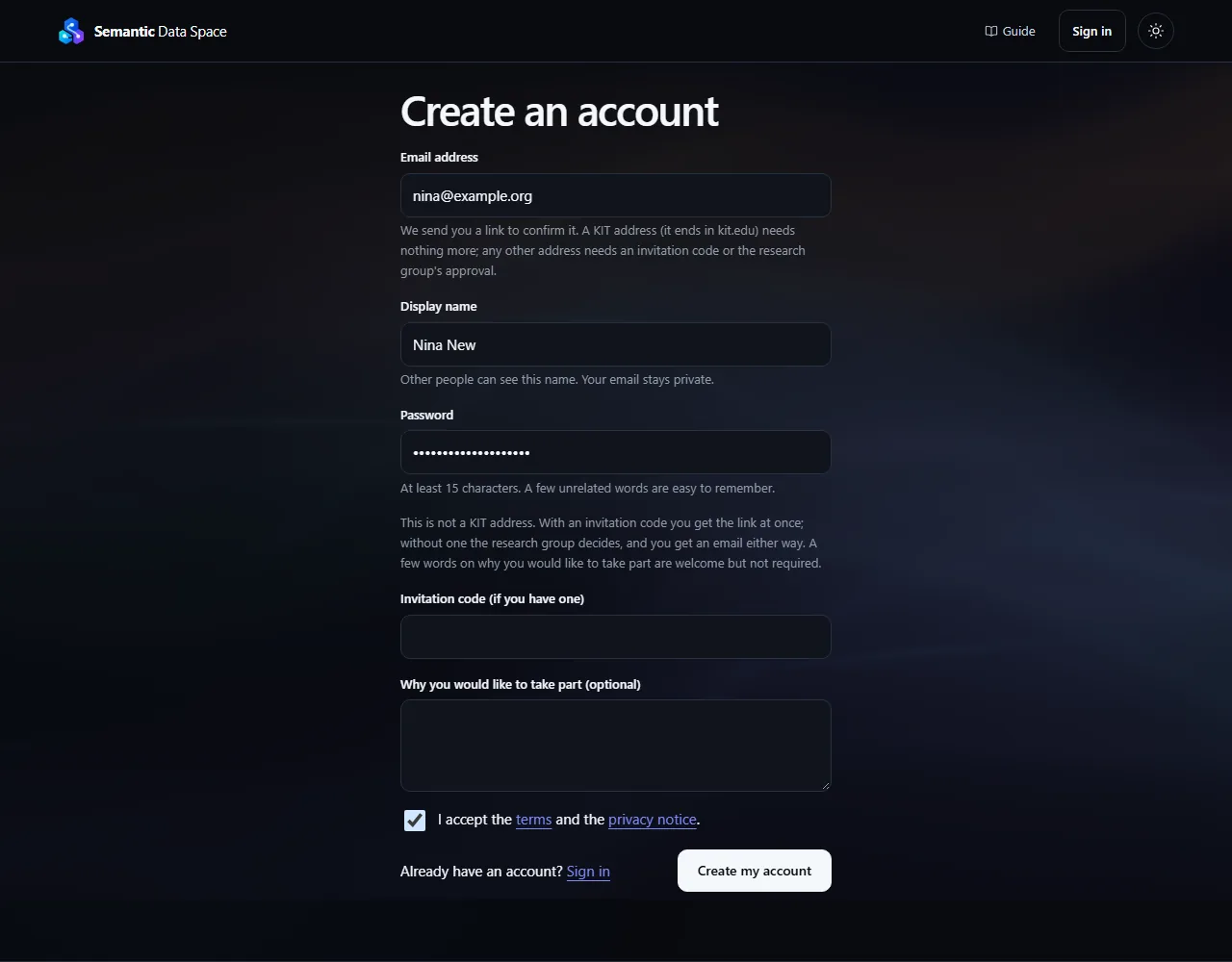
Create an account
Everyone needs an account to ask questions and to use the Library.
Steps
- Open "Create an account".
- Enter your email address, a display name and a password with at least 15 characters. With an address outside KIT, you can also enter an invitation code, or a sentence on why you would like to take part; both are optional.
- Tick the box for the terms and the privacy notice, then press "Create my account".
Tips
- With a KIT email address (ending in kit.edu) or an invitation code, we send you an email with a link: open it within 24 hours to confirm your address, then sign in.
- With any other address, the research group decides on your request. You get an email either way; if it is approved, the email has the link that confirms your address.
- Your password must not be a common one. A few unrelated words are easy to remember and hard to guess.
- No email after a few minutes? Look in the spam folder, or press "send the link again".
- Other people see your display name. Your email address stays private.
- Next time, use "Sign in" with the same email address and password.
- Forgot your password? Press "Forgot your password?" on the sign-in page. The link we send works for 1 hour, and every device is signed out.
Ask a question
Ask is a chat. Your question is a message, and the result of the check is the reply.
Steps
- Open the Ask tab.
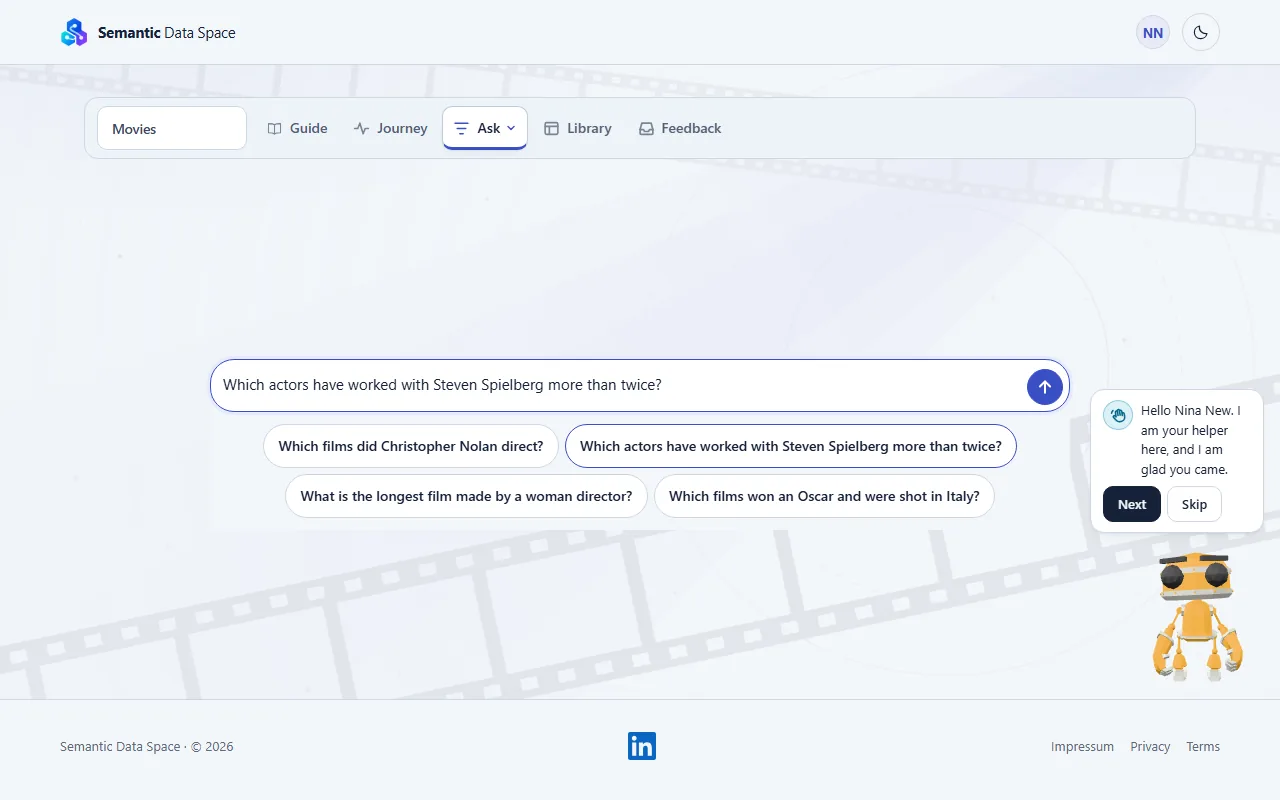
- Write a question about movies in the message box, or pick one of the examples.
- Press the arrow button, or the Enter key. Your question appears as a message.
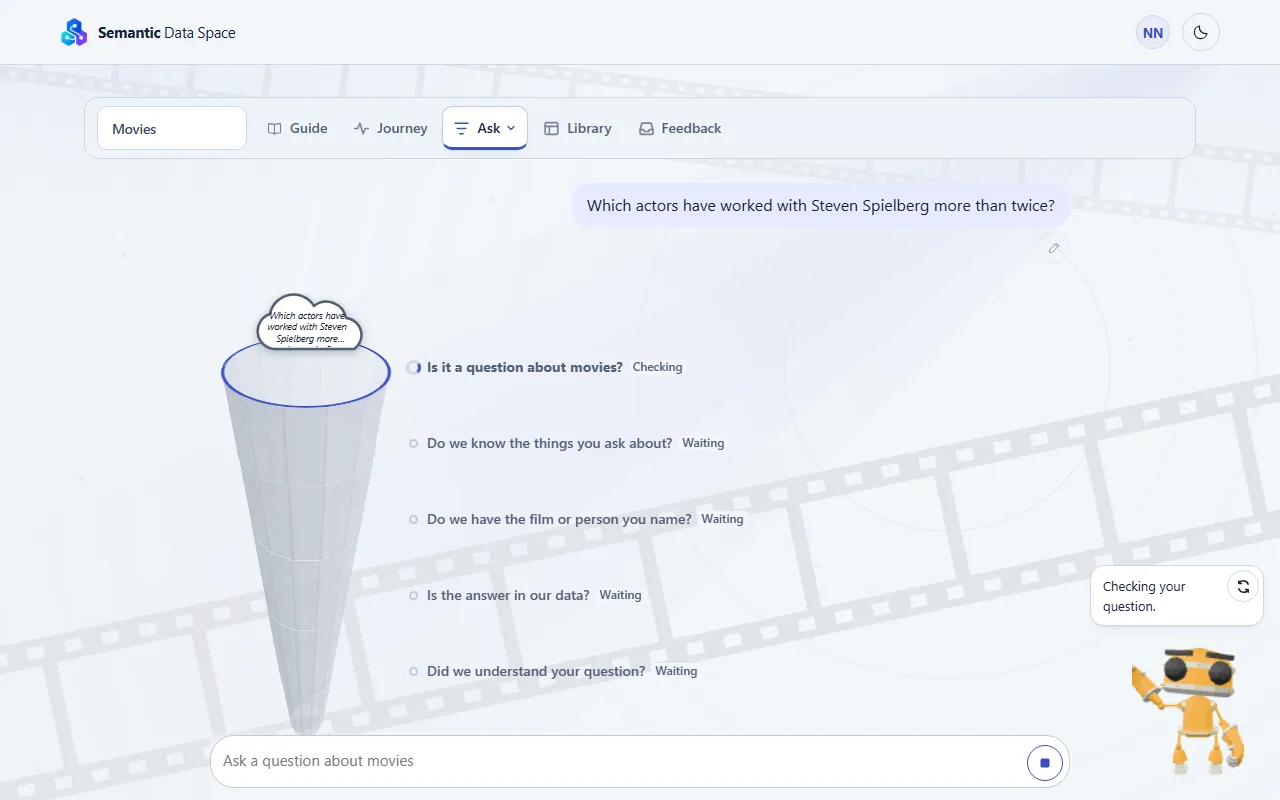
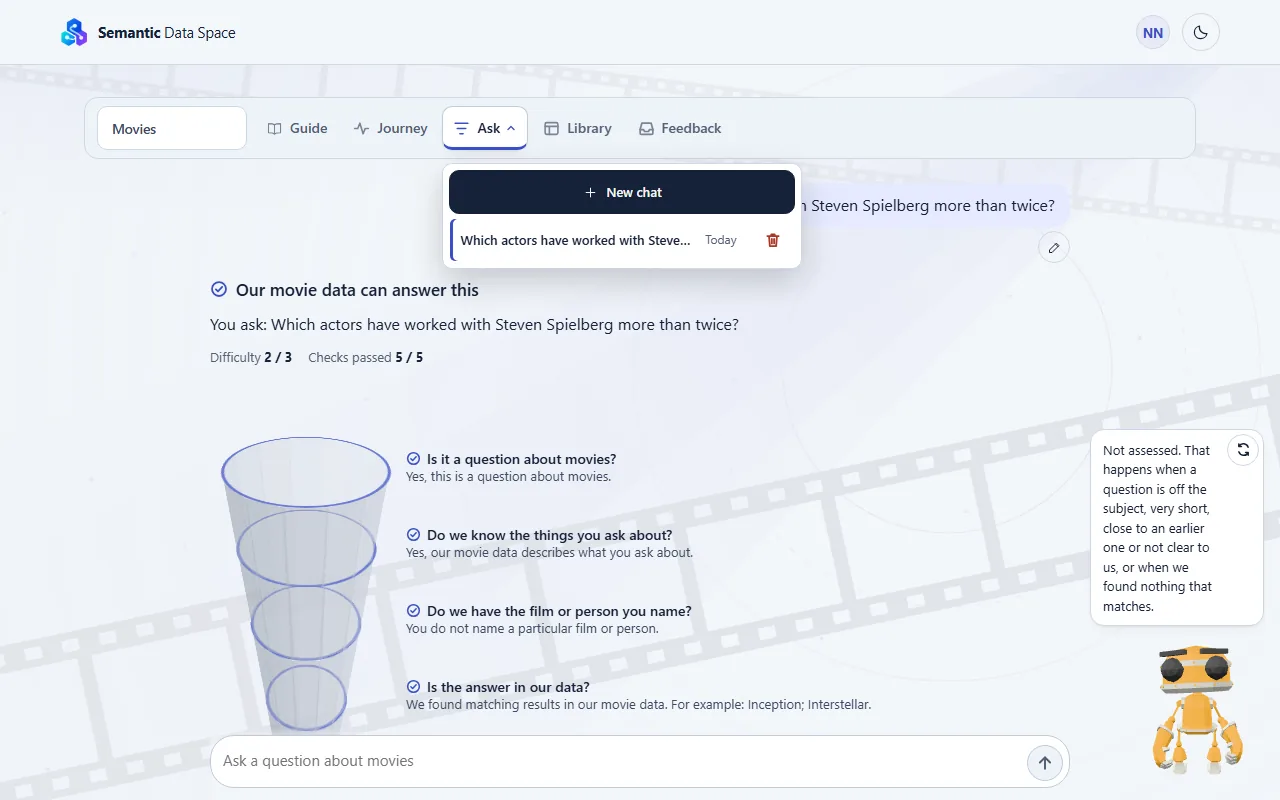
- Before the check starts, the page says "Waiting to start". While it runs, each check shows its symbol, and the arrow is a square: a check that has passed shows its check mark at once. Sometimes we work on an earlier check once more: that row turns again, and one line under the funnel says why. Press the square to stop the check. When the checks are over, the page says "Preparing your result".
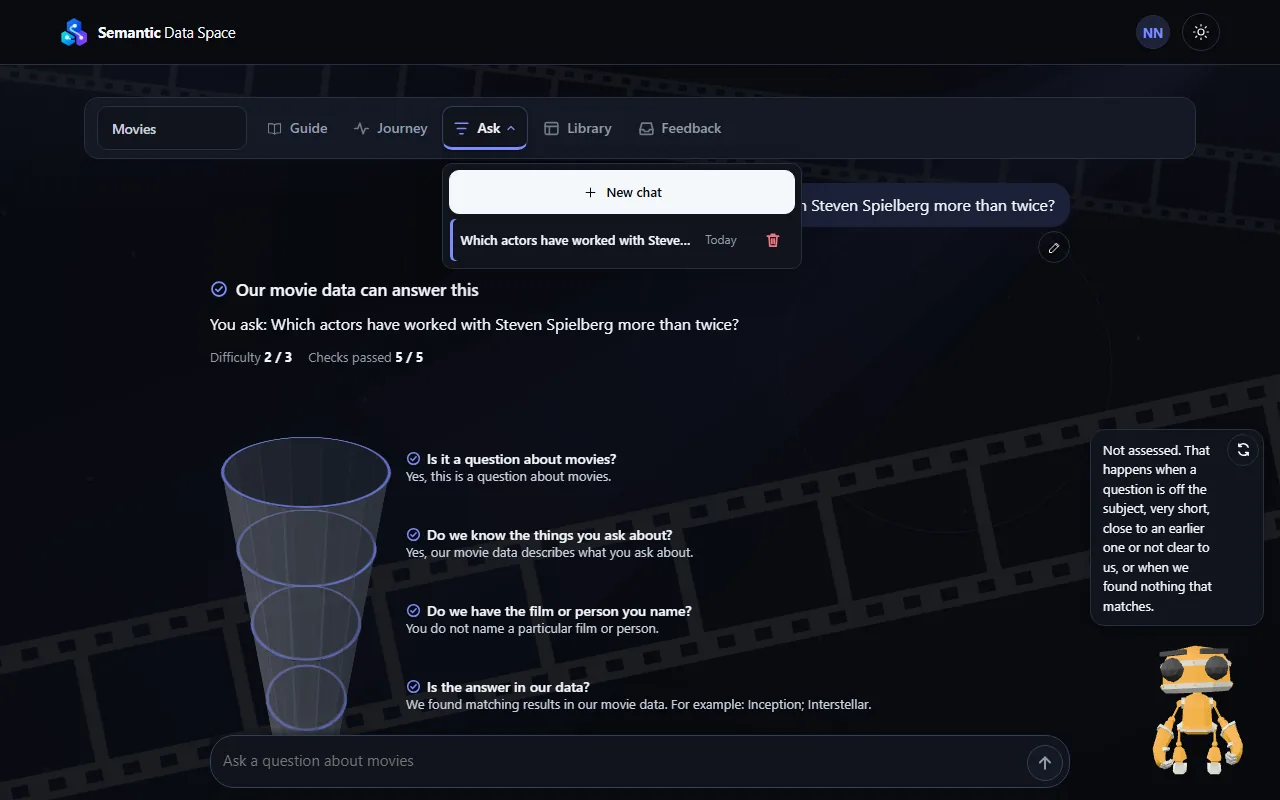
- Press the Ask tab once more to open your chats under it: pick an earlier chat, or start a new chat.
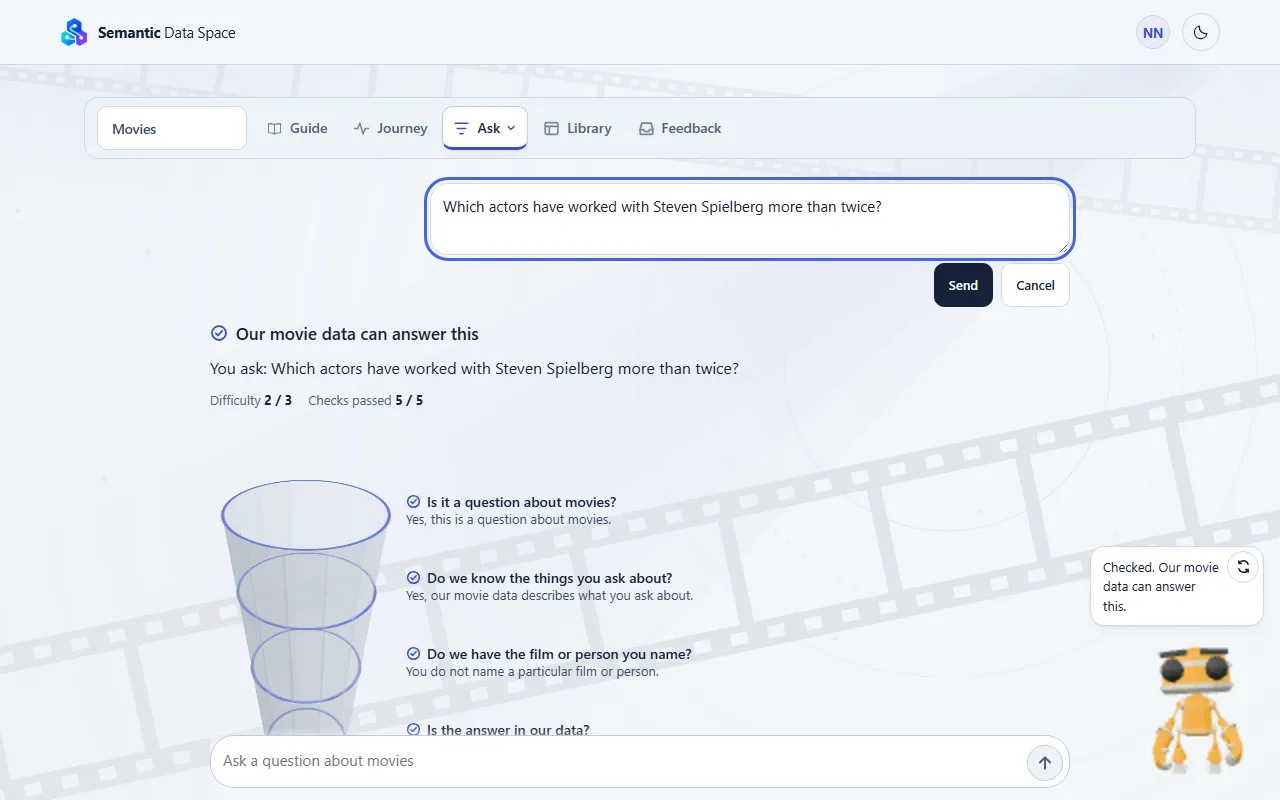
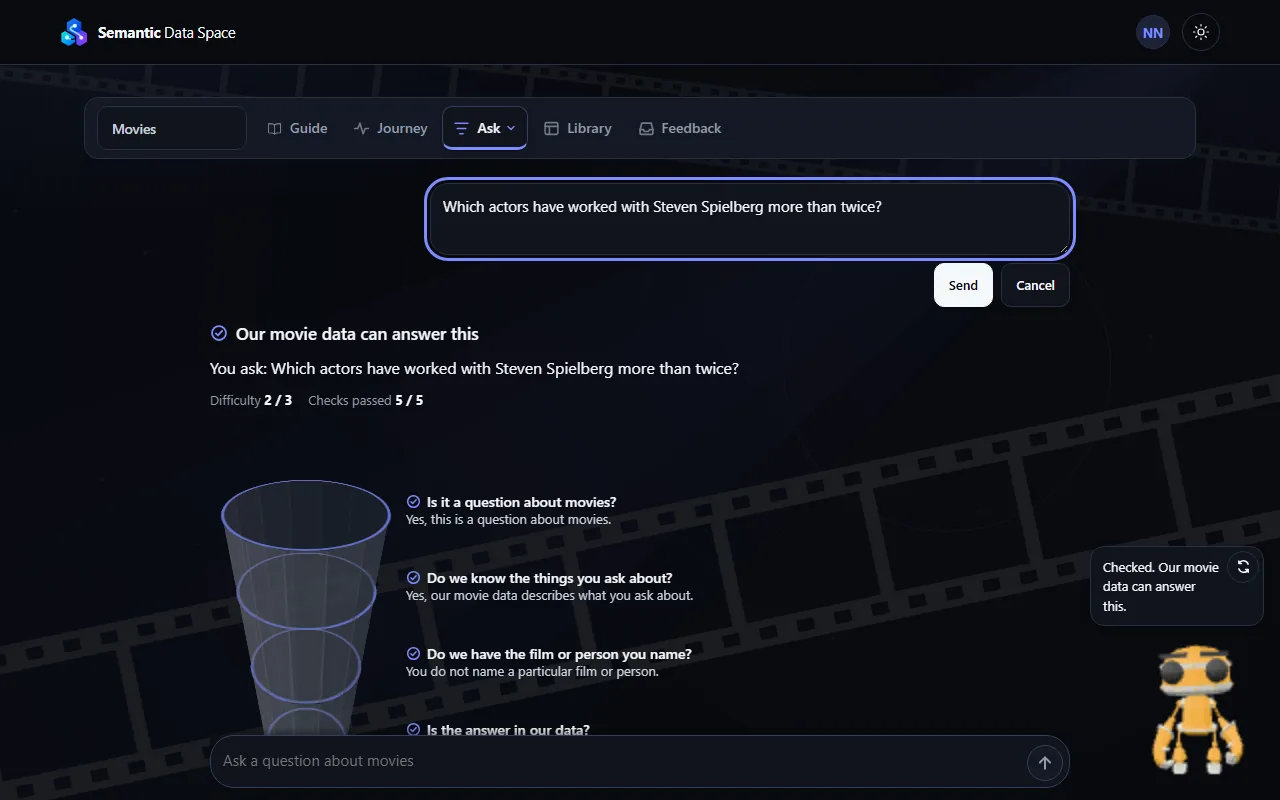
- Under your message there is a pencil. Press it to change your words, then press Send or the Enter key. Cancel or the Escape key keeps your words as they were.
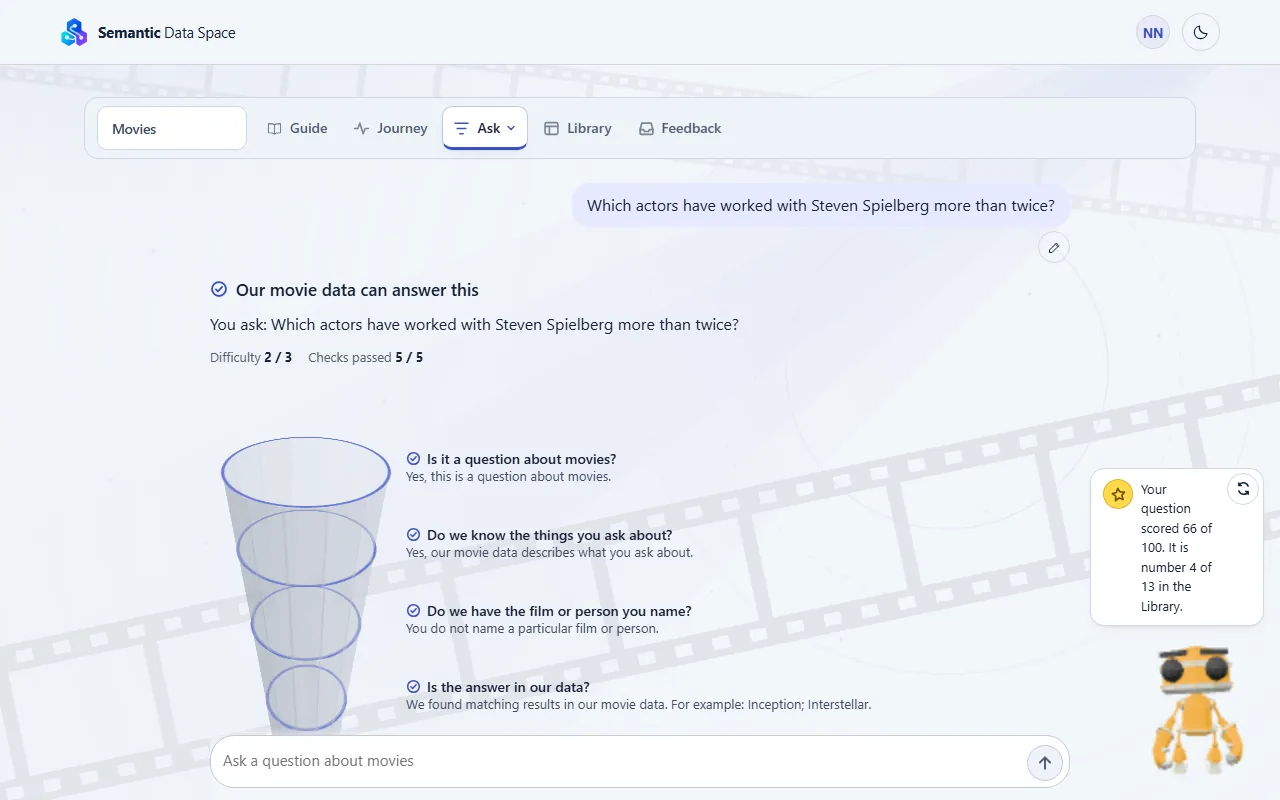
- The helper tells you the score of your latest question and its place in the Library, or says "Not assessed" when the very same question is already in the Library. Press the helper to put its words away or bring them back.
Tips
- Harder questions help us most.
- Questions our movie data cannot answer yet are the most valuable.
- A new question is added to the Library right away.
- The pencil waits while a check runs. A question you stopped can also be deleted, next to the pencil.
- You can leave the page while a check runs. The check goes on, and the result is in the Ask tab when you come back.
- You can send the next question while an earlier one is still being checked.
- The list under the Ask tab shows your earlier chats, each with its first question and its day. Pick one to see its questions and results again.
- After each sign-in you start in a new chat. A chat you remove leaves its questions in the Library.
- The helper stands beside the message box. At your first visit it tells you what it is there for.
- You can move the helper. Press its figure, hold, and drag it where you like; it stays inside the window, and a browser or phone remembers the place. A short press still puts its words away or brings them back.
- After each question the helper tells you its score and its place in the Library. Every question gets a score, also when its check could not finish; only a repeat in the very same words is "Not assessed", never a zero.
- The helper reads again by itself when you come back to the page and every half minute. The arrows beside its words read it again now.
Read the result
The reply tells you if our movie data can answer your question.
Steps
- The top line says what the check found. There are five kinds of result. They are listed under Tips.
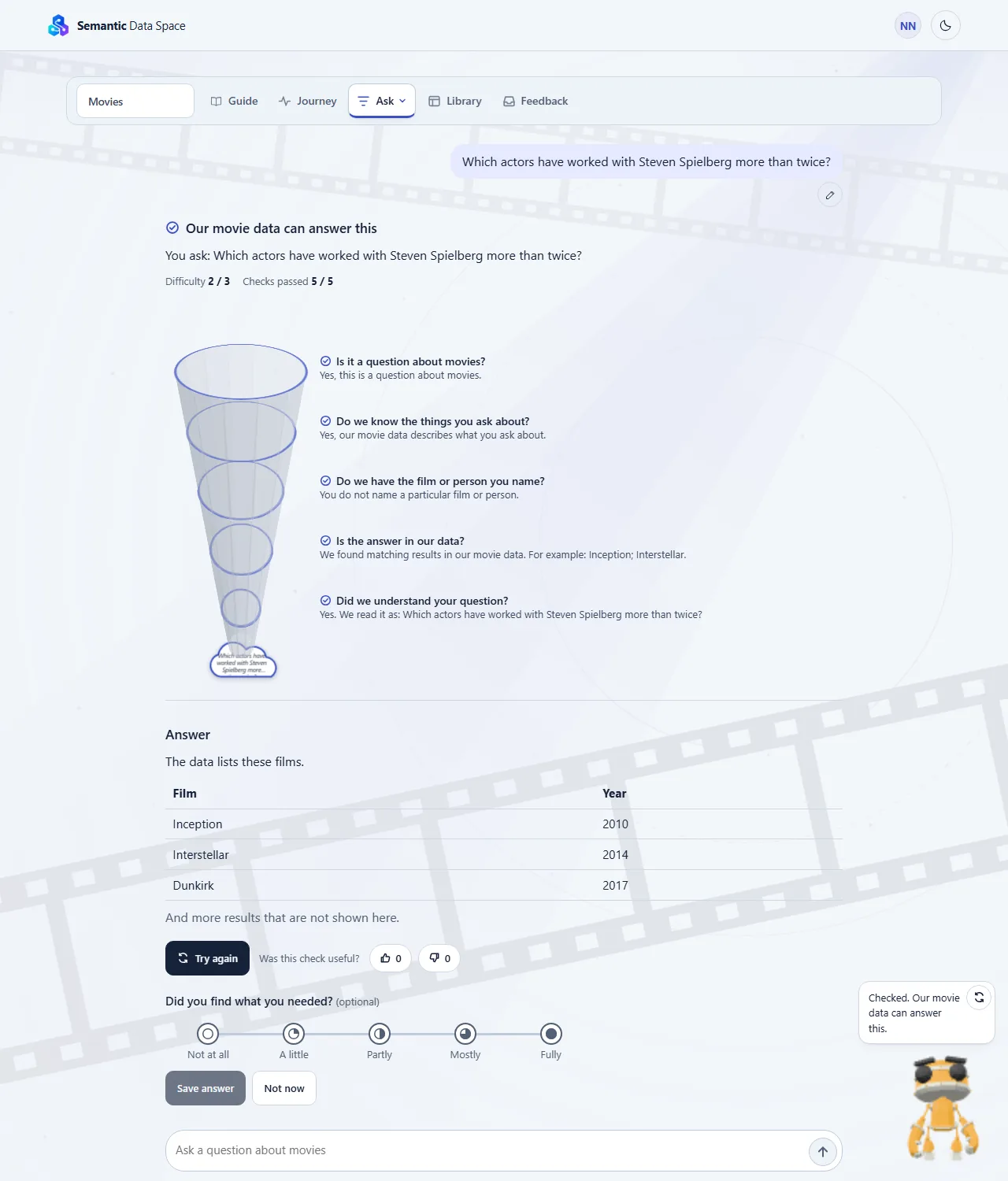
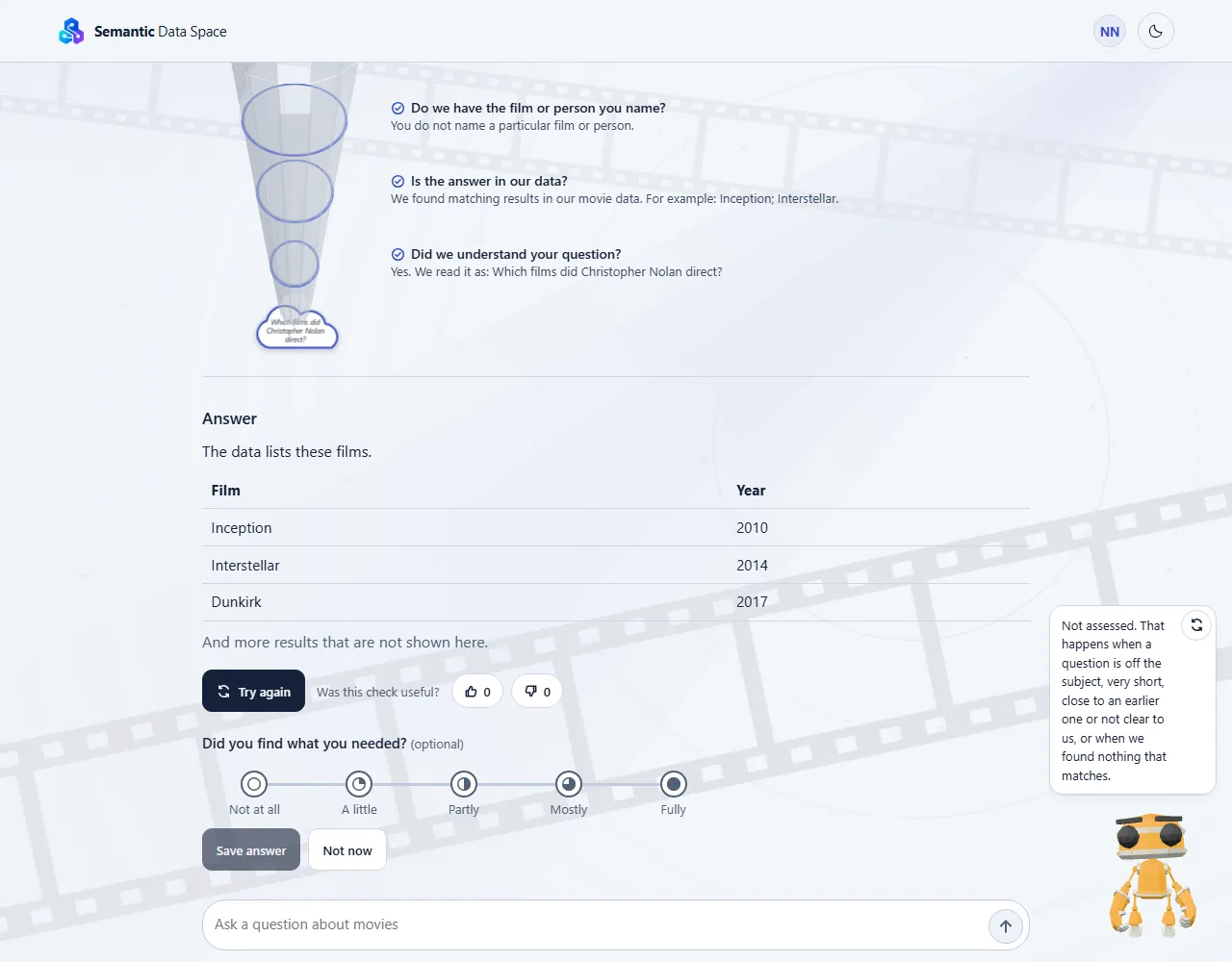
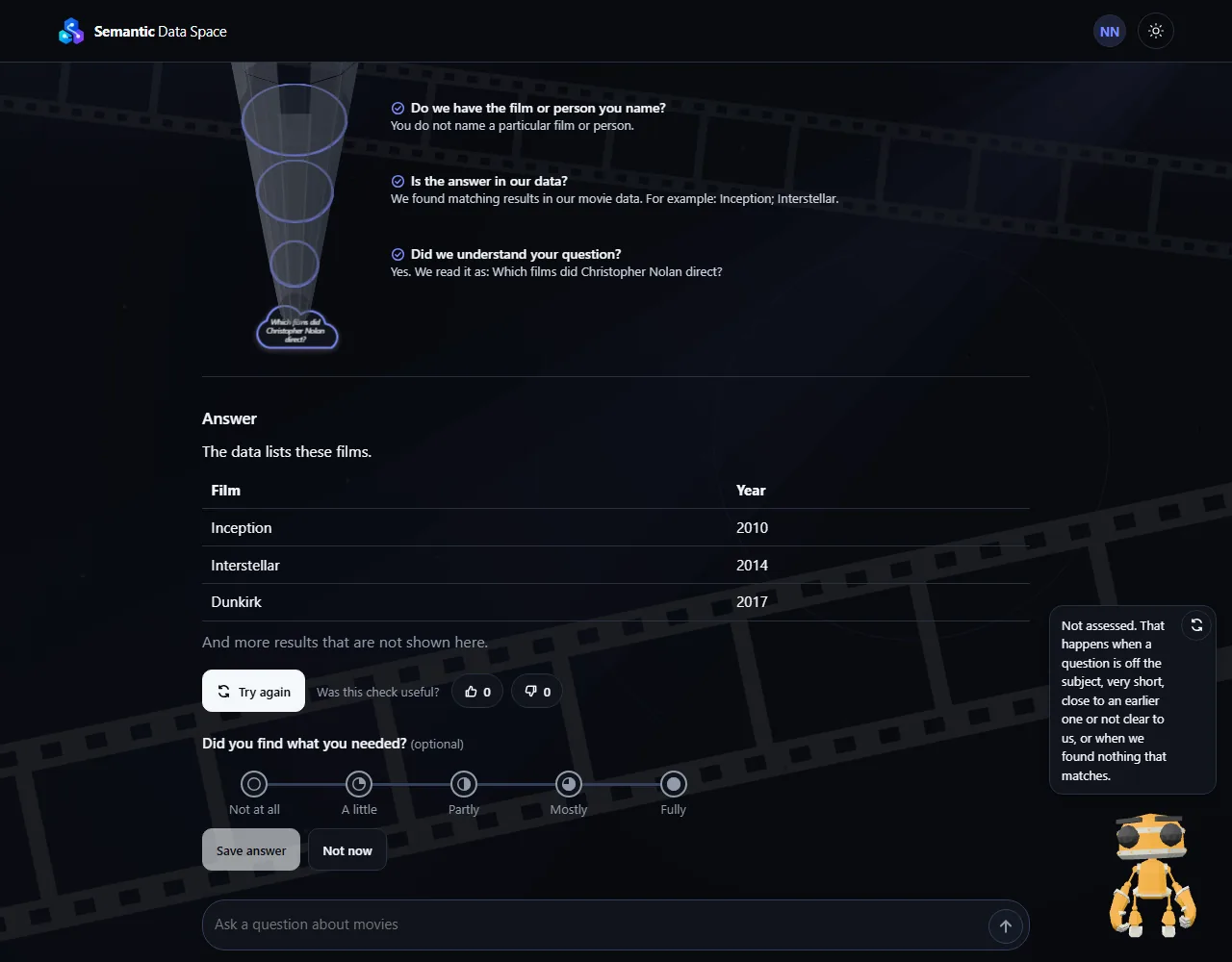
- The funnel has one layer for each of the five checks. The layers are shown in reading order; some of the work runs at the same time. Each layer shows its state with a symbol of its own. A layer that passed shows only its symbol; the others also say it in words: Did not pass, Not certain, Skipped, not needed, or Could not finish, with a short reason:
- Is it a question about movies? We look whether you ask about films and the people who make them.
- Do we know the things you ask about? Our data must know every kind of thing and every fact your question needs. A pass means our data has terms that relate to your words; it does not yet show that it can answer.
- Do we have what you name? Every film, person or other thing you name in your question must be in our data.
- Is the answer in our data? We look in our data and say what we found. We call the results matches, and show examples, only after the last layer agrees.
- Did we understand your question? We compare what we looked up with what you asked. When they do not match, the layer says that our look-up did not match: that is a weakness of our check, not a sign that your question is unclear.
- Two numbers follow: Difficulty, from 1 to 3, and Checks passed, out of 5. Point at a number, or move to it with the Tab key, to read what it means.
- Tell us with a thumb if the check was useful. A small window opens where you can add a few words. Press your thumb again to change your words or take your vote back.
- Press "Try again" next to the thumbs to check the same words once more.
- Under a result two thumbs ask if the check was useful. Choose one and add a few words if you like; the numbers are everybody's votes. Your views of the site as a whole go in the Feedback tab.
Tips
- Our movie data can answer this: the answer is in our data.
- Partly answered: the answer is in our data, but our data has no value for part of what you asked. A line under the result names what is missing, and the Library card carries the label "Partly answered". The question under your result then asks whether the part you got helped.
- Our movie data can answer this, but we could not double-check how we read your question: the answer is in our data, but the last check reads "Not certain", because the reading was not confirmed by a second reviewer. In the Library such a question carries the label "Answerable, reading not double-checked".
- We found nothing that matches in our movie data. That does not show that there is none. The data check reads "Not certain": it ran, and what it found is not certain. In the Library such a question carries the label "Nothing found, not certain".
- Our movie data does not seem to cover this yet: we think what you ask about is not described in our data. This is our best judgement, so we word it with care. The layer that found it reads "Did not pass" and says what is missing. It is amber, not red, because it is a finding about our data and not a mistake in your question.
- Our movie data cannot answer this yet: a rule of our data says a value must be there, and it is not. The layer that found it reads "Missing". It shows us what to add.
- We are not sure that we understood your question: the reply says how we read it and that what we looked up did not match. That is a weakness of our check, not a fault of your question; asking it in other words may help.
- This does not look like a question about movies: the check stops at the first layer.
- We could not finish the check: the line under it says what stopped the check. The row where it stopped reads "Could not finish", and the rows after it read "Skipped, not needed". In the Library the label is "Interrupted"; press "Try again".
- We could not establish an answer from the available evidence: the check ended without an answer that we can stand behind. In the Library the label is "Not established".
- Not happy with your words? Press the pencil under your message and the check starts again.
Read the answer
Every result comes with a written answer.
Steps
- Send your question. The answer appears below the five checks, after a short wait.
Tips
- The answer only uses what our movie data returns. We do not add facts from anywhere else.
- If there is no answer to show, you see a short note instead of an answer. The note says why: we found nothing that matches, we are not sure that we understood your question, the question is not about movies, or our movie data cannot answer it yet.
- If you change your words with Edit, or press Try again, the answer is written again with the new result.
Use the Library
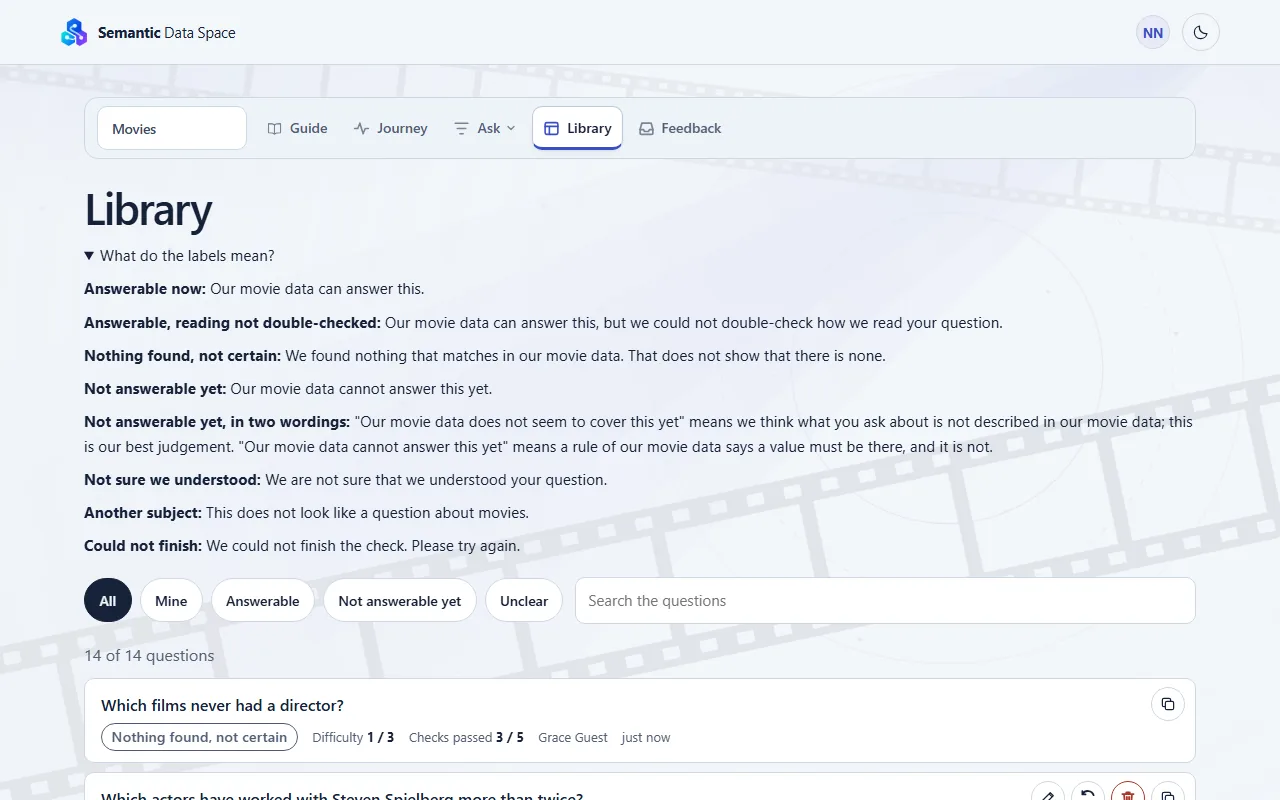
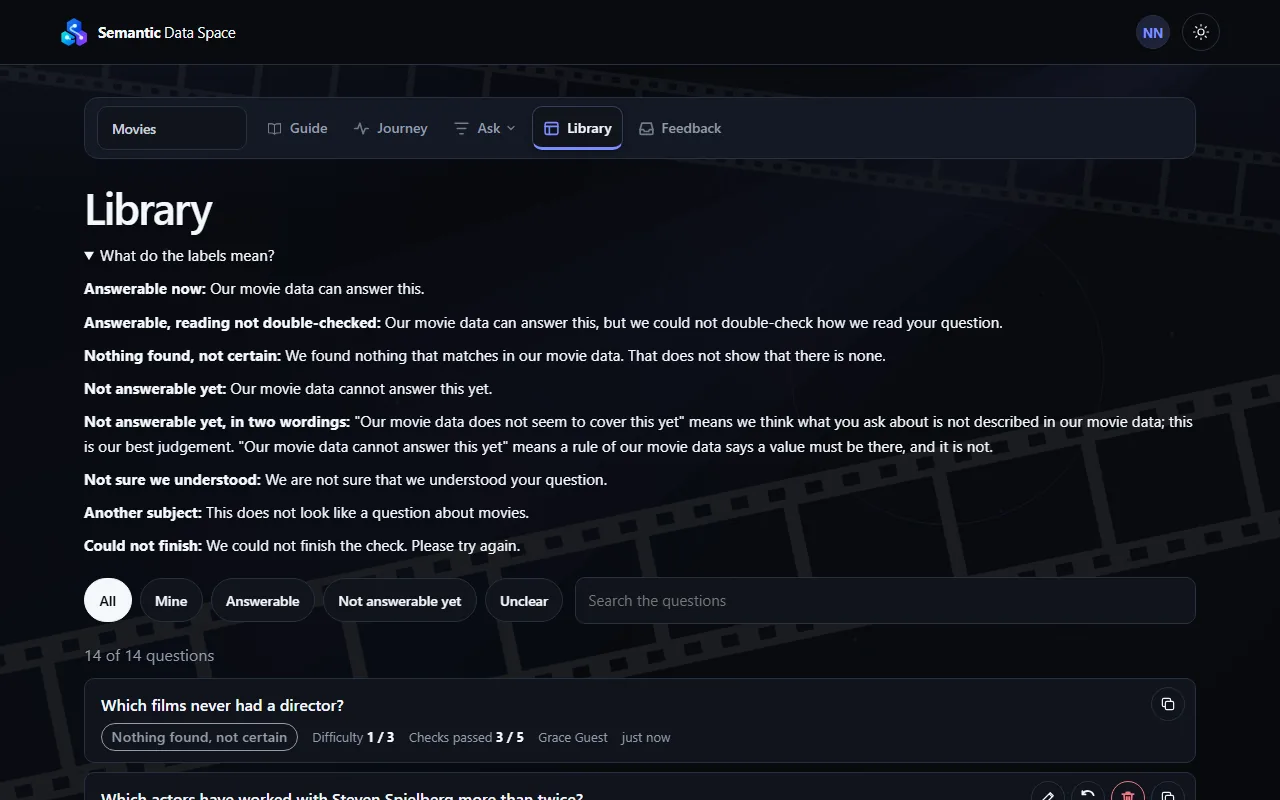
The Library holds the questions of everyone. It updates by itself.
Steps
- Open the Library tab.
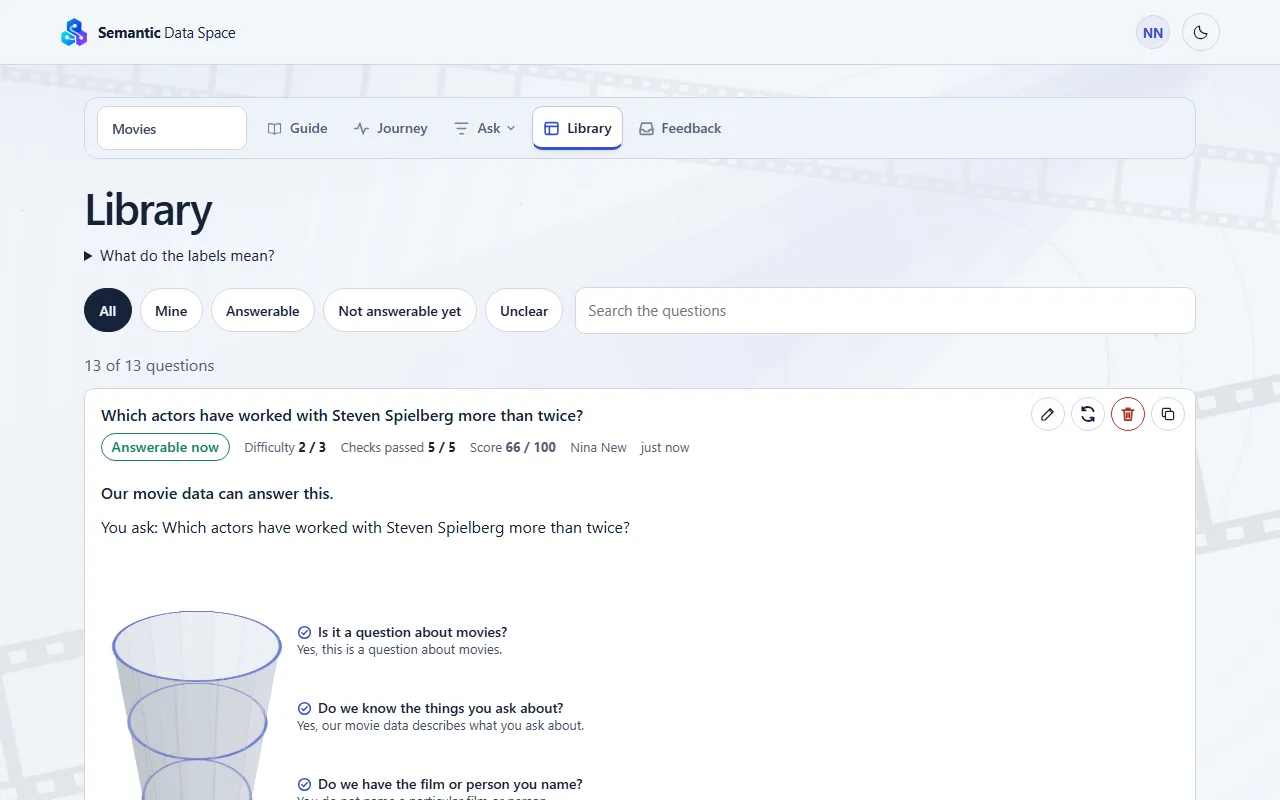
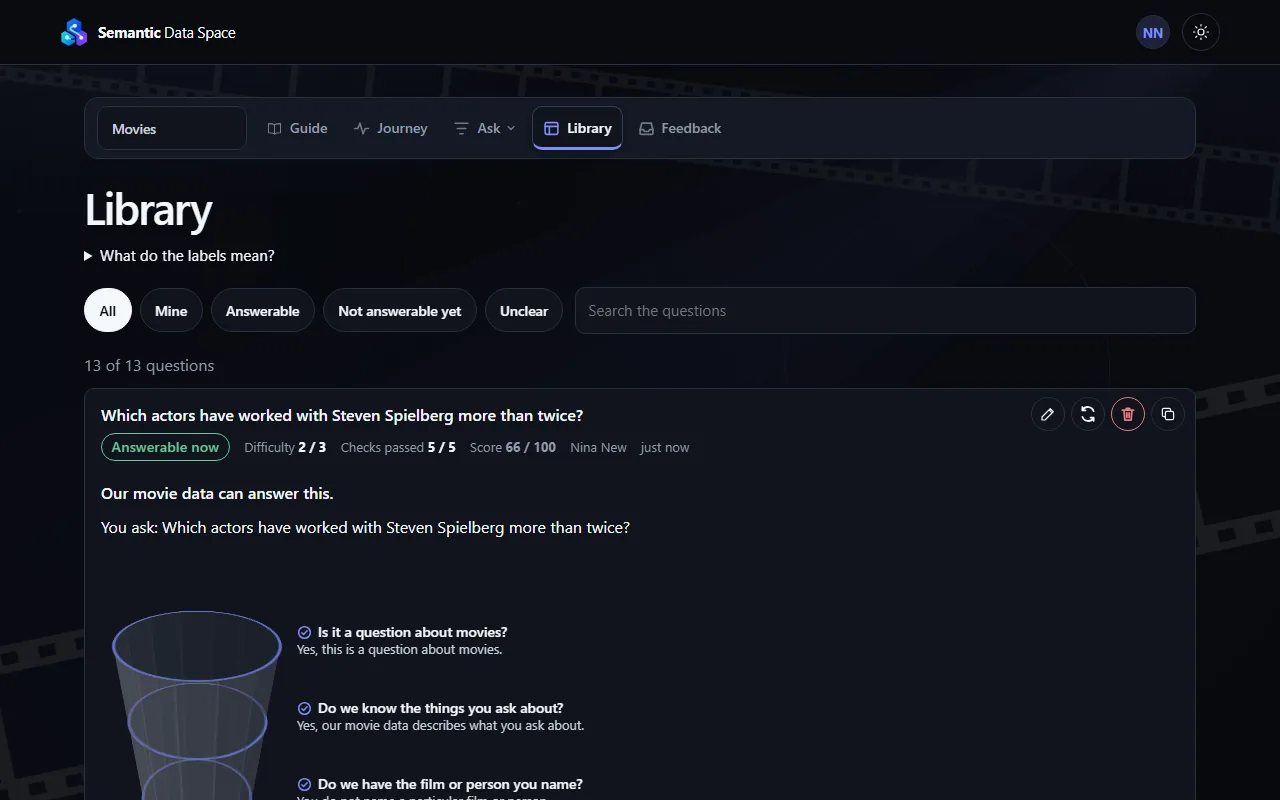
- Use the buttons to see all questions, only yours, the answerable ones, the ones not answerable yet, or the unclear ones.
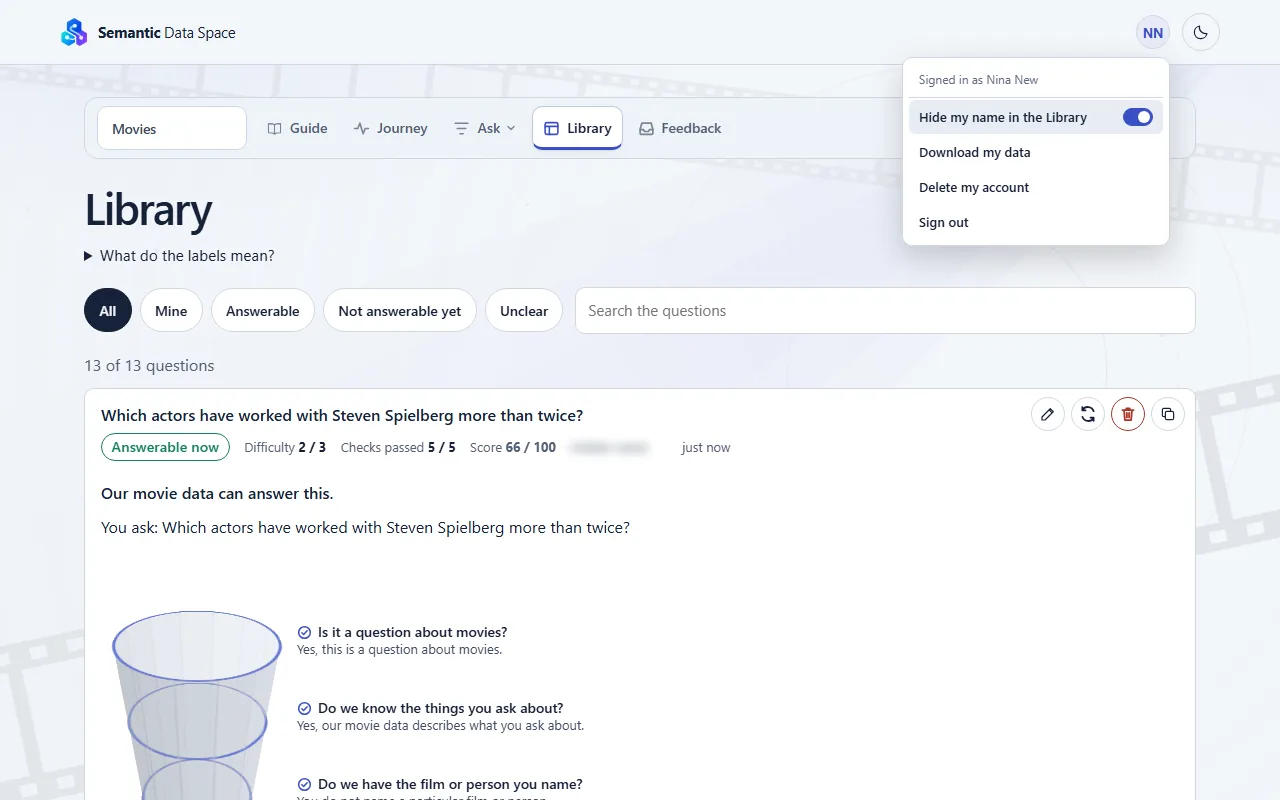
- Type in the search box to find a question. The search reads the words of the questions and the names of the people, and does not mind capitals or accents. Select a question to see its five checks, its answer and the thumbs with how many people chose each. You can give each question one thumb, change it or take it back. On your own questions you also see your score, or "Not assessed" when the very same question was asked before.
- The copy symbol at the top right of every question copies its words, so that you can use them elsewhere. It only copies: the question stays as it is, and "Copied" confirms it.
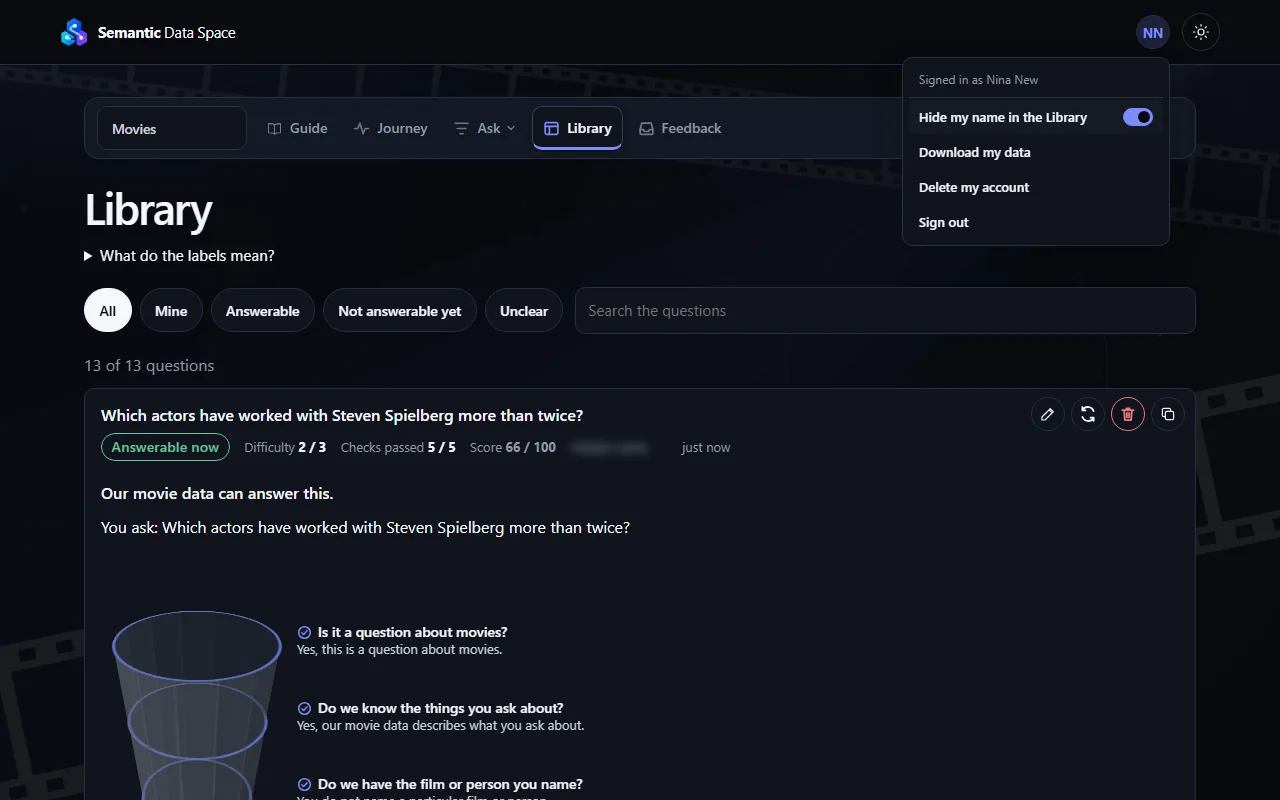
- On your own questions, the pencil changes the words, the circling arrows check the same words again, and the bin deletes the question. New words start a new check.
- Do you prefer that nobody sees your name? Open the menu of your account and switch on "Hide my name in the Library".
- Your name then looks blurred next to your questions, for you and for everybody else.
Tips
- You can only change or delete your own questions.
- A question that is still being checked shows "Checking..." until it is done.
- Every question carries a label with its kind of result. "What do the labels mean?" explains them.
Give feedback
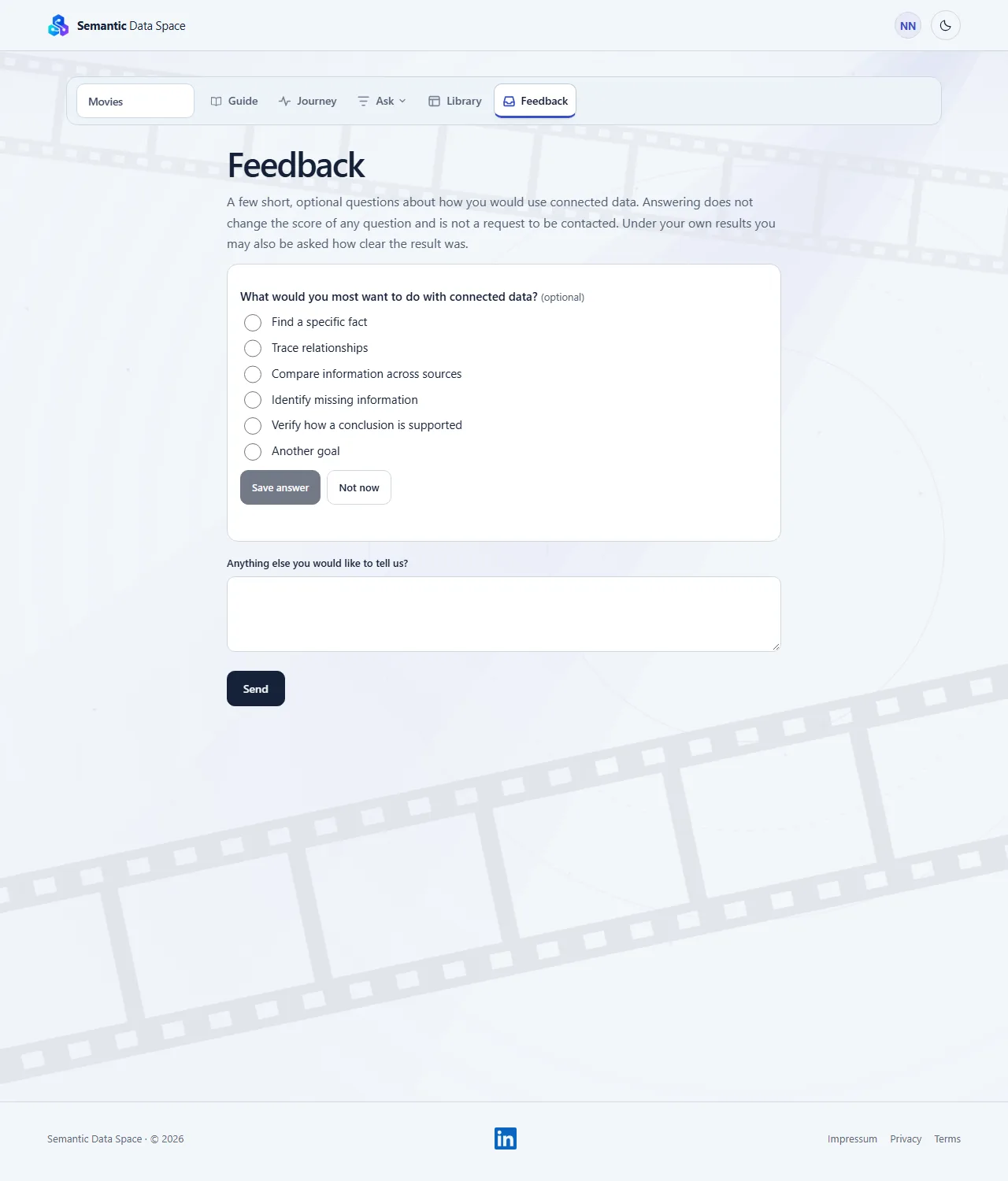
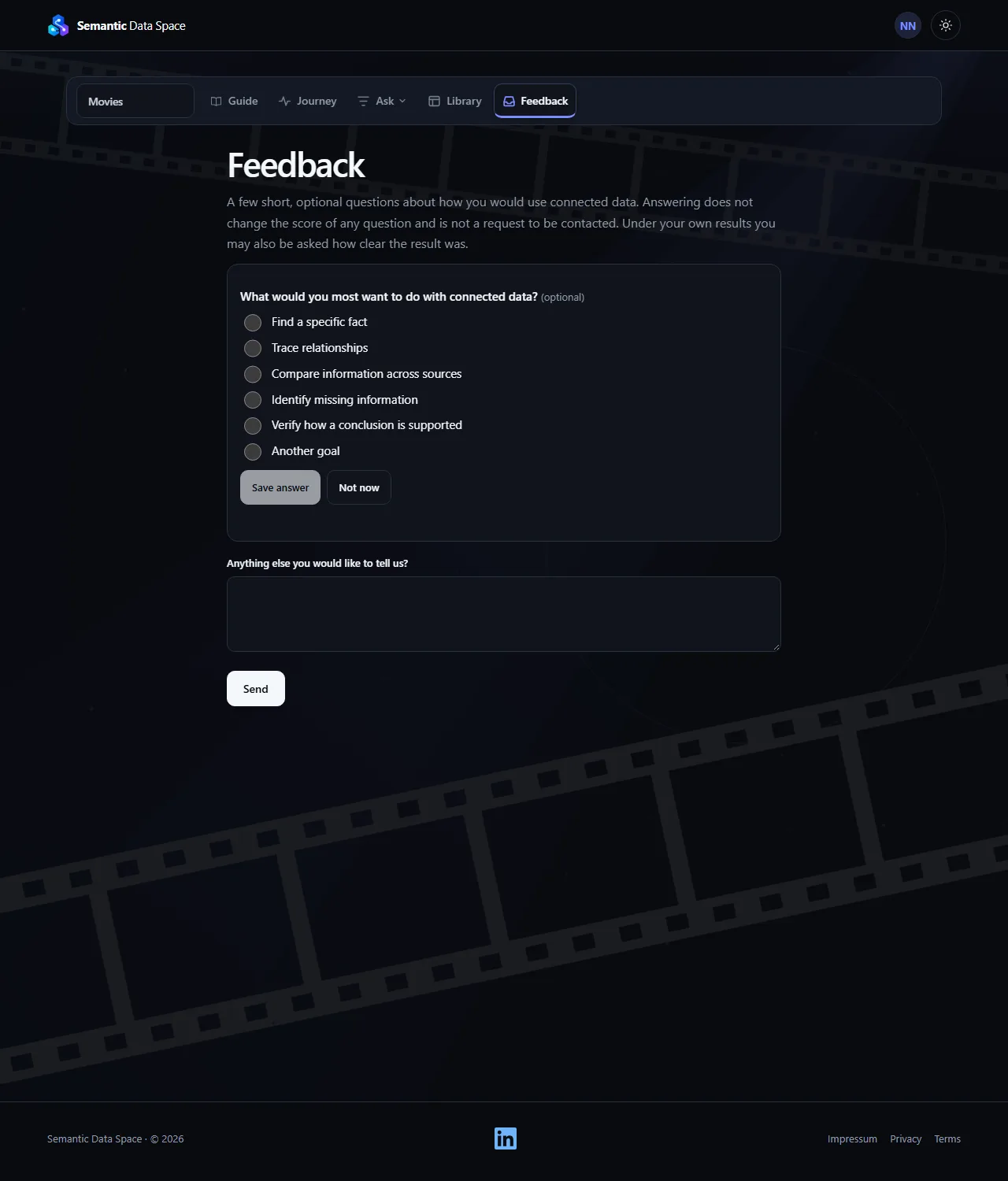
The Feedback tab, when your workspace shows one, is the place to tell us what you think of the site. If there is no such tab, feedback is not open yet.
Steps
- Open the Feedback tab, if your workspace shows one.
- Answer the questions you want to: choose the answer that fits you, or put the options of a ranking question in your order by dragging them.
- Write anything else in the last box if you like, then press "Save answers" once at the end.
Tips
- You do not have to answer anything. One answer or a few words are enough.
- The questions are there for everyone who is signed in, also before you have asked anything.
- You can change a saved answer, or clear it with the cross beside it, and press "Save answers" again.
- Your answers do not change the score of any question. Under a result there are only the thumbs; the Feedback tab is about the site as a whole.